Ledge for Mac
Your notch,
put to work
Ledge is a native Mac notch app for music, files, clipboard history and live activities. Works with or without a notch.
Free while it's in beta · macOS 14 or later


Get to know Ledge
Up top and within reach
In the notch
Watch the top of your Mac work
Five moments from a day with Ledge, all in the same black strip at the top of the screen.
- FinderFileEditThu 9:41

01A song is playing
The cover sits on one side of the camera, the song's wave on the other.
- FinderFileEditThu 9:41
02The volume changes
Instead of a pop-up, the level slides out beside the camera, then steps aside.
- FinderFileEditThu 9:41
Shelf
PDFBrief.pdfSVGLogo.svgMOVCut-01.mov03You drop a file
Drag it to the top of the screen. It waits on the shelf until you need it.
- FinderFileEditThu 9:41
Clipboard⌃⌥⌘V
Text · NotesPick up the keys from Sam at 6Link · Safarigithub.com/ledge/notes04You paste it again
Everything you copied, a shortcut away, ready to paste into the app you're in.
- FinderFileEditThu 9:41Thursday 12 November9:41Timer4:38
05You lock the Mac
A timer you started stays under the clock, and the notch shows a lock.
Highlights
The small things you do all day, one hover away
They're there the moment you need them, and out of the way when you don't.
Clipboard history
Sort it by app or into collections of your own, and paste straight back into the app you're in
Lyrics scroll on the lock screen above the song card, with the line being sung highlighted.
Lyrics, even on the lock screen
Timed lyrics follow the song in the player and on the lock screen, the sung line bright above the song card
The shelf
Drag files to the top of the screen. They wait there until you drag them out where you need them
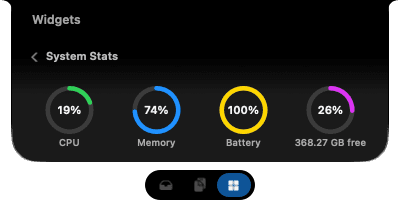
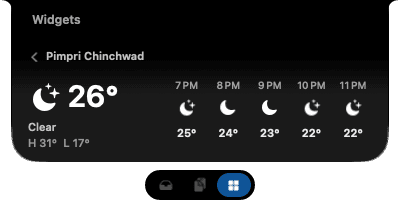
Widgets
System stats, the weather where you are, and Text Capture, which turns any part of the screen into text
Shelf and Transform
Drop a file on the notch, pick the tool you need
Pick a tool that fits what you dropped and press the button. Nothing is uploaded: every tool runs on this Mac.
- Size
- Compress pictures, video, audio and PDFs, by quality or to fit a file size. Resize pictures to a longest side and video to 480p, 720p or 1080p
- Format
- Convert pictures to JPEG, PNG, HEIC or TIFF, video to MP4 or MOV, audio to M4A or WAV. Make a GIF from a video, save a video's sound, combine pictures and PDFs into one PDF, or split one into pages
- Edit
- Remove a photo's background, rotate or flip, strip location and camera details, trim, remove a video's sound, or change its frame rate
- Files
- Open ZIP and TAR archives, zip everything you dropped into one archive, or rename files in place
- Presets
- Web ready, Under 10 MB, Light PDF and Chat GIF, one tap each
- Safe by default
- New files are named “(Transformed)” and never overwrite anything. A compressed file that isn't smaller is thrown away, and originals go to the Trash only if you ask
FFmpeg and Ghostscript add more formats and much smaller PDFs. How Transform works
Floating player
Your music, anywhere on the desktop
Drag the player off the menu bar and it stays where you drop it. Three sizes in Liquid Glass, with motion artwork, lyrics and the queue.
Launcher
Press ⌥Space to search your Mac
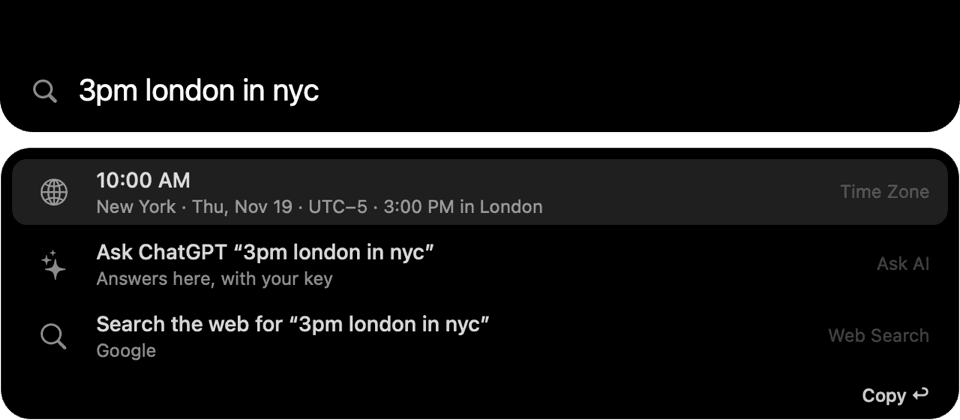
A search bar drops out of the notch. Open apps, settings and files, do sums, convert units, check the time somewhere else, and ask AI with your own key.
- Categories
- Applications, Files, Settings and Clipboard, on ⌘1 to ⌘4
- Files, with a preview
- What you opened lately, with when. Videos and songs play right in the preview
- Answers
- Sums, tips, units and time zones answer as you type, ready to copy
Live Activities
What your Mac is doing, beside the camera
Ledge replaces the macOS pop-ups and adds the ones it never had. Each slides out of the notch, then steps aside. Turn on only the ones you want.
- Volume
- Brightness
- Keyboard brightness
- Battery and charging
- File tray
- Caps Lock
- Hold to quit
- Mic and screen recording status
- Screen recording controls
- AirPods and headphones
- Noise control
- Bluetooth devices
- Focus mode
- No internet
- VPN connected
- Wi-Fi
- External drives
- Download progress
- Ledge updates
Add-ons
More from the notch, one add-on at a time
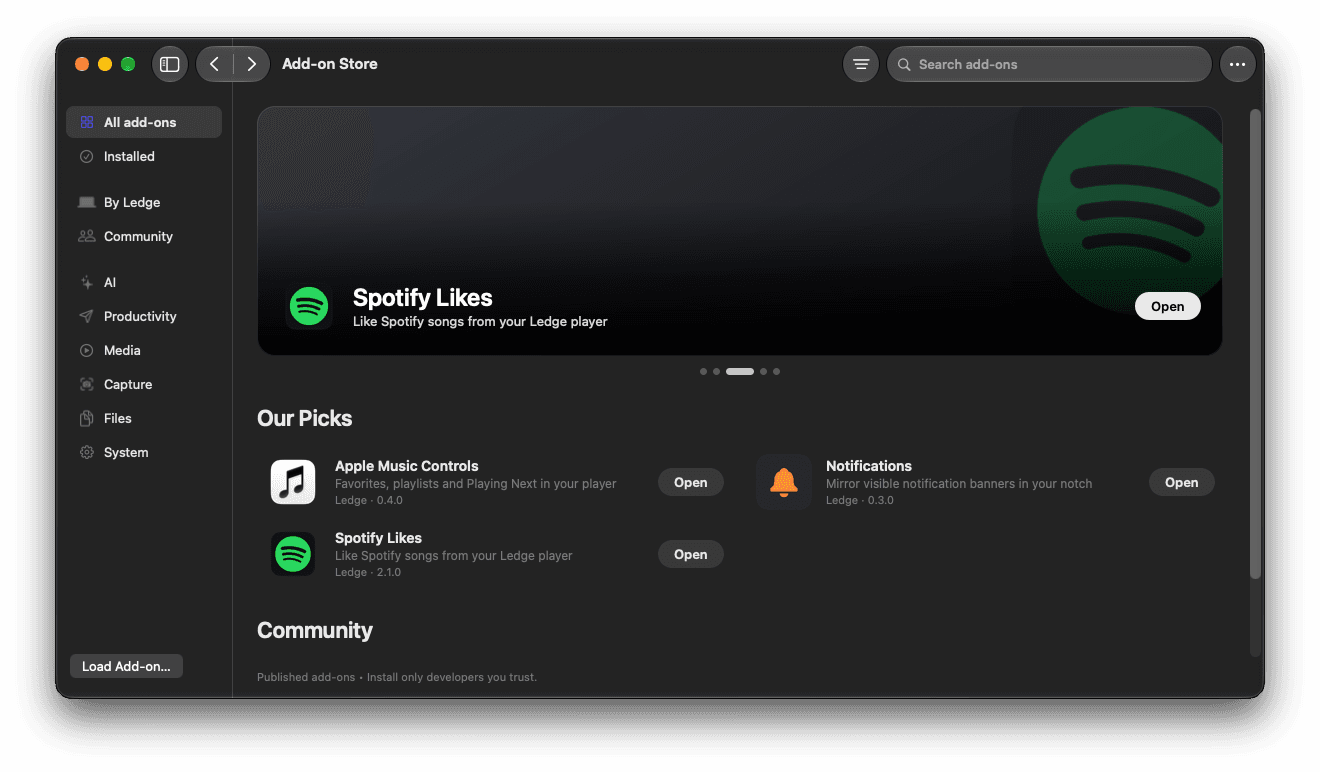
Add-ons bring new abilities without a Ledge update. Find them in the Add-on Store in Settings, one click to install.

Notes
Productivity

Agents
Productivity

Terminal
Productivity

Emoji
Productivity

Launcher
Productivity

LocalSend
Productivity

Cleaner
System

Spotify Likes
Music

Apple Music Controls
Music

Lyrics
Music

Notifications
System

Audio Control
System
LedgeKit
Build your own add-on
Write it in Swift with LedgeKit and submit it to the public catalogue. Once it's reviewed and merged, it's in the Store.
- 01
Build
Write the add-on in Swift with LedgeKit, test it, and load it into your own Ledge
- 02
Submit
Open a pull request to LedgeAddOns with the source, manifest, icon and tests
- 03
Listed
After review and merge, it's built for Apple silicon and Intel, and shows up in the Store
Make it yours
Black, glass, or somewhere between
Choose what the notch is made of, how it looks on displays without one, and exactly how big it is.

Black
Solid black that blends into the camera housing
Dynamic Glass
Glass under one even tint you choose
Liquid Glass
Clear glass all the way, closed and open
- Notch or pill
- A real notch is always used as a notch. Other displays get a drawn notch or a floating pill
- Size
- The notch's width and height, and how wide the pill is
- Glass
- Clear to frosted, tinted or not, and a soft blur around the open notch
- Colours
- The highlight, the volume and brightness sliders, and the song's wave
Every Mac
With a notch, or without one
MacBook with a notch
Ledge wraps around the camera. The notch you already have becomes the shelf, the player and the rest
Any other display
A drawn notch or a floating pill at the top of the screen, at the size you pick
Privacy
Native, local and quiet
- Stays on your Mac
- Your shelf and clipboard history live in Ledge's folder on this Mac, and nowhere else
- Permissions you can see
- Settings lists every permission, with a tick when it's granted or a button to ask for it
- Built for macOS
- Written in Swift with AppKit. Liquid Glass on macOS 26, and the frosted blur before it
FAQ
Questions and answers
What is Ledge?
A Mac app that lives at the top of your screen. It keeps a shelf for files, your clipboard history, the song that's playing and live activities like volume, battery and downloads, all in the notch.
Does it work on a Mac without a notch?
Yes. On an external display, or a Mac without a camera notch, Ledge shows a drawn notch or a floating pill. You pick which, and how big it is.
Which music apps does it work with?
Any app that reports to Now Playing on macOS. Spotify and Apple Music also get shuffle and repeat and the Up Next queue. Liking a Spotify song comes from the Spotify Likes add-on.
What permissions does it need?
None for the notch, the shelf, clipboard history and most live activities. Accessibility lets it paste for you, Screen Recording powers Text Capture, Location is for local weather, and Automation lets it control Spotify and Music. Settings shows each one with a tick, or a button to ask for it.
Where does my data go?
Shelf files and clipboard history stay on your Mac. Ledge goes online only for the weather, lyrics and artwork, the add-on catalogue when you open the Store, Spotify if you connect it to Spotify Likes, and checking for a newer version.
Are add-ons safe to install?
Each one is reviewed before it's listed, and Ledge checks every download against the catalogue before installing. Add-ons still run as native code with your account's access, and aren't sandboxed yet, so Ledge asks you to trust each one first. Install only add-ons from developers you trust.
Do I need FFmpeg or Ghostscript?
No. Transform works without them, using what's built into macOS. They're free extras you can install from Settings → Transform through Homebrew: FFmpeg adds WebM, MKV, MP3 and FLAC to Convert, and Ghostscript makes PDFs much smaller when you compress them. Ledge only uses them for those choices.
What do I need to run it?
macOS 14 Sonoma or later. The Liquid Glass finishes use macOS 26 where it's available.
Try the Ledge beta
Ledge 0.1.0 Beta 8, for macOS 14 or later. It isn't notarized by Apple yet, so macOS asks you to allow it once. The install guide shows how.