
System · An add-on for Ledge
Audio Control
A volume slider for each app
Version 0.1.1 · By Sumit
See Audio Control in Ledge
What Audio Control does
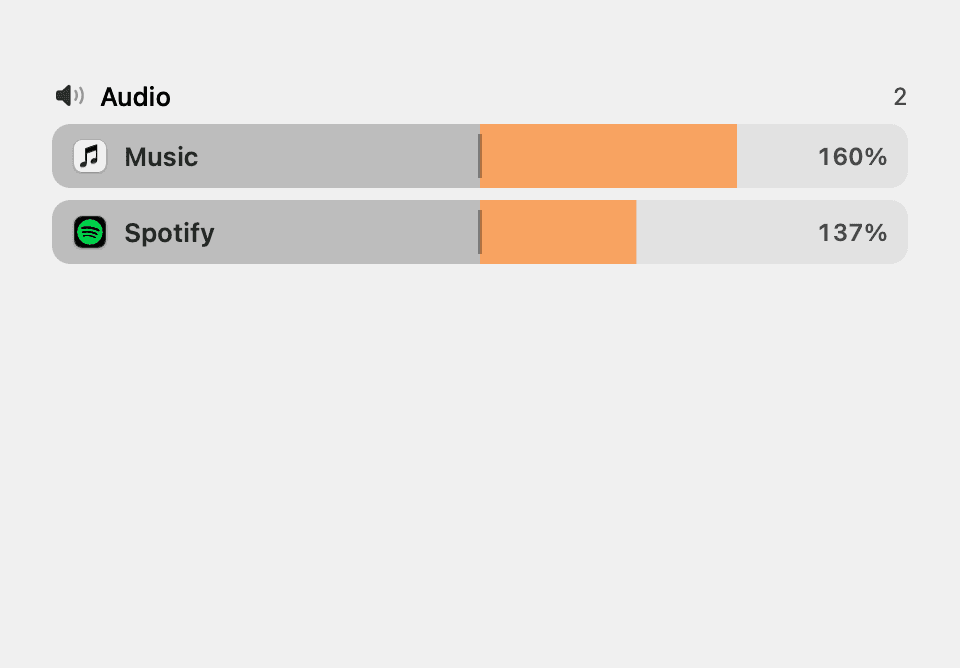
Audio Control shows every app that's playing sound as a row in the notch, with its icon, name and level; drag or scroll on a row to set how loud that app plays. It has its own page in the Add-ons tab and a widget for Home. Turn a call down under your music, or a game below a video, without changing the Mac's volume. For an app you set above or below 100% (up to 200%), Ledge takes that app's sound through a Core Audio process tap and plays it on the same output at the level you set; at 100% there's no tap and the app plays as usual. It remembers each app's level until you reset them in Settings. It can also send an app to its own speakers or headphones, switch the Mac to your preferred devices as they connect, and mute every microphone at once; those need the audio devices permission. The first time, macOS may ask to let Ledge capture system audio. Nothing is recorded and nothing leaves your Mac.
- Version
- 0.1.1
- Category
- System
- Developer
- Sumit
- Availability
- Free · needs a Ledge with LedgeKit 0.22 · macOS 14.2 or later
Install Audio Control
- Download Ledge and open it on your Mac.
- Open Settings → Add-on Store and search for Audio Control.
- Choose Install, then review and approve the permissions it requests.


