
Productivity · An add-on for Ledge
Quick Translate
Translate selected text in a card beside it
Version 0.1.0 · By Sumit Kumar
See Quick Translate in Ledge
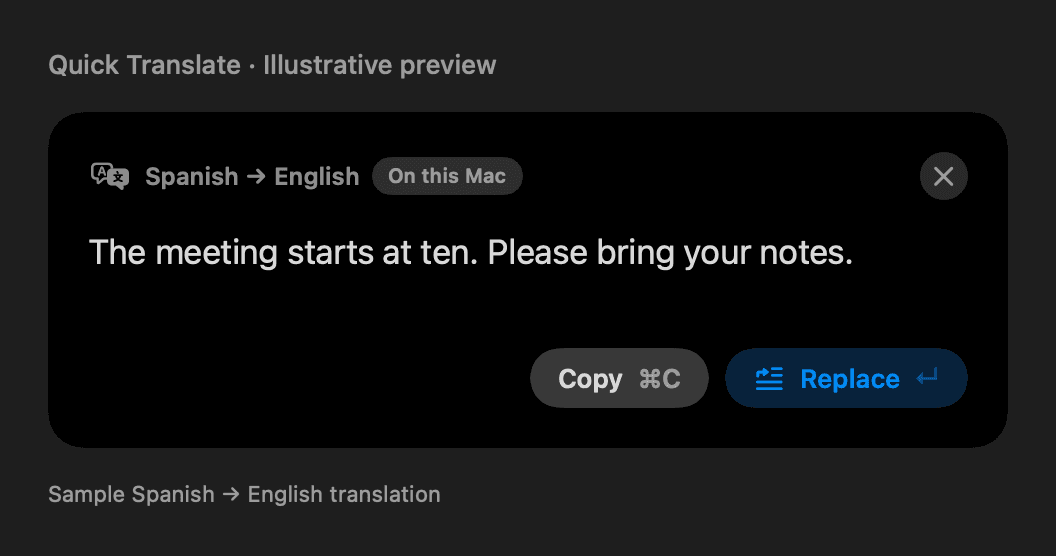
What Quick Translate does
Translate text where you read or write it. Select up to 4,000 characters in another app and press the shortcut you choose in Quick Translate settings. A black card beside the selection shows the language direction, an On this Mac badge, the translation, Copy (⌘C), Replace (Return) and Close (Escape). Choose a target language and a second language for text already in your target language. Turn on the optional button beside mouse selections if you prefer to click. Ledge uses Apple Translation for supported language pairs; macOS may ask to download language files. Requires Accessibility. Secure fields are excluded, and a changed or read-only selection is copied instead of edited. No selected or translated text is saved, sent to the add-on, or sent to an AI or online translation provider. Unsupported pairs show a message; there is no AI fallback.
- Version
- 0.1.0
- Category
- Productivity
- Developer
- Sumit Kumar
- Availability
- Free · macOS 15 or later · requires LedgeKit API 0.24.0 (newer than Ledge Beta 10)
Install Quick Translate
- Download Ledge and open it on your Mac.
- Open Settings → Add-on Store and search for Quick Translate.
- Choose Install, then review and approve the permissions it requests.


